Showing posts sorted by date for query orbiter for educators. Sort by relevance Show all posts

Monday, December 31, 2007

A Year of Space & Blogging

I'm still reading Andrew Chaikin's excellent Apollo book (I'm in the middle of Apollo 16 right now) and enhancing this experience with Orbiter simulations of lunar landings and EVA's in AMSO. Apollo 15 was such an impressive mission, and thanks to Chaikin and especially AMSO, I now have a much better feel for the dramatic mountain valley location, for the distances covered in this first Lunar Rover mission, and for the scientific accomplishments of this mission. The picture shows the LM approaching its landing site about 2 km east of Hadley Rille. AMSO continues to improve, and according to this recent forum thread, the next version will even include 3D virtual cockpits for the CSM and LM!

But it's the last day of the year, the traditional time to look back and sum up: just how did we do in the fiftieth year of the Space Age? Fortunately for me and you, Alan Boyle at Cosmic Log has done a great job summarizing the year in space. This brief video summary of JPL's impressive 2007 accomplishments and this one about JPL's Explorer 1 (the first US satellite, launched in January 1958) are also great.

For myself, 2007 was a really great "year in space." It was my first year as a volunteer JPL Solar System Ambassador, and I presented or participated in at least ten educational outreach events, many of them in conjunction with the Aldrich Astronomical Society. I attended the National Space Society meeting (ISDC 2007) in Dallas, presenting a paper (3.5 MB PDF) on the uses of Orbiter for education, and attending talks by (among many others) Apollo astronauts Buzz Aldrin and Harrison Schmitt (I stood three feet from Buzz for about 5 minutes but he was busy and I didn't get to meet him). I was also fortunate enough to attend a NASA educational conference in Orlando in connection with the STS-118 mission, which also allowed me to join in a VIP tour of the Kennedy Space Center and to experience a shuttle launch from just 6 km away - really awesome. I also bought my first small but fairly reasonable telescope, an Orion StarBlast (earlier I had bought one of those useless department store telescopes they tell you never to buy, ostensibly for my daughter). I'm sure there will be more!

It certainly appears that I like to write, though I've known that for years. Before blogging came along, it was personal journals on whatever I was into at the time: books, Japanese study, songwriting, recording, flight simulators, flight lessons, etc. Although I didn't produce a new edition of Go Play In Space as I did in 2005 and 2006, I managed to write some 326 blog posts on quite a few subjects, including a number of tutorial posts under the heading "Orbiter for Educators." I still believe that space and astronomy are a great way to engage kids and others and to encourage interest in the wonders of science and technology. Orbiter continues to be a great help in my educational presentations and personal explorations into space and astronomy. I look forward to doing more educational outreach (and more blogging) in 2008 and beyond.

Happy new year and best wishes to all!

P.S. I had planned to host the Carnival of Space last week, but people were apparently too busy with Christmas and other things. I'm waiting to hear from Fraser Cain about hosting it this week, so stay tuned, and if you have a post you'd like to include in the next carnival, please send it in.

Thursday, August 09, 2007

Orbiter for Educators: Getting Started

As I try to extend the shuttle launch experience with occasional NASA TV breaks and by reading the no-holds-barred Riding Rockets by Mike Mullane (a mission specialist who flew three shuttle flights between 1984 and 1990), I'm also thinking about the teachers and informal educators I met at the NASA STS-118 educational conference on Sunday and Monday. It was great to hear about how these dedicated educators are using space flight themes to help engage students of all ages.

I gave cards and single-page Orbiter information handouts to many of the people I spoke with at the conference, so if you are a fellow STS-118 conference attendee, welcome! I hope Orbiter is useful to you, or to some of your colleagues or students, but I want to warn you not to get discouraged if your first impression is that it's pretty complex. It can be complex, since it's based on real orbital mechanics. But if you do a little preparation, you'll find you can do simple but interesting things pretty quickly. After that, it's up to you - and the sky is obviously not the limit!

A few tips. Download my Go Play in Space and read the introduction and the first two chapters, then install the program and go through the steps in chapter 2. This will teach you a lot about operating a spacecraft in Orbiter. Do this even if you're itching to download the Shuttle Fleet add-on and recreate STS-118. If this is exactly what you want to do, then go ahead (download and install all the required zip files - there are three, the shuttle fleet, the ISS fleet, and the expansion pack, plus the updated STS-118 scenarios), but I suggest that you also download and read this nice Shuttle Fleet launch tutorial by José Pablo Luna Sánchez ("ar81" on the Orbiter Forums). If you don't get what he describes when you start the scenario (e.g., shuttle launch instruments), quit (Control-Q) and go to the Modules tab on the Orbiter "launchpad" dialog box. Make sure that GPCMFD is in the active (left side) list, along with Orbiter Sound. Note that even with the autopilots and Pablo's tutorial, the Shuttle Fleet is probably not the very first thing you should do in Orbiter - it requires a little experience, attention to detail, and a bit of persistence, though not quite at the Barb Morgan level!

You may also want to check out my earlier Orbiter for Educators blog posts for some tips on using Orbiter in the classroom. Also feel free to post questions at the Orbiter Forum (there's even an Orbiter in Education section). Now go play in space!

Monday, August 06, 2007

STS-118 and Education

The countdown for the shuttle launch is "nominal" and the weather looks good for the planned Wednesday launch - I'm psyched! Meanwhile the STS-118 Prelaunch Education Conference wrapped up today, and it was an excellent meeting. It was great to meet so many NASA people and educators, including teachers, administrators, science museum staff, informal educators, and others. We are all trying to find ways to make use of kids' interest in space flight to inspire the next generation of scientists and engineers.

Of course one of the basic problems is that this STEM stuff (science, technology, engineering, and math) is not easy - it can certainly lead to rewarding educational and career experiences, but it's something you really have to work at, and that takes perspiration as well as inspiration (to paraphrase Edison). I managed to hand out around 60 single-page flyers that I printed up on Orbiter and to talk with many people about using it as an excellent interactive (and free) educational resource. I hope some of them find it useful.

For STS-118 itself, with the theme "Igniting the Flame of Knowledge," NASA has planned some inflight education events, as well as follow-up activities and challenges including an engineering design challenge for K-12 and an astronaut-inspired physical fitness challenge for grades 3-5.

P.S. This page confirms that STS-118 Commander Scott Kelly and Pilot Charlie Hobaugh have in fact been practicing landings in the Shuttle Training Aircraft in spite of quarantine, so that may have been their Gulfstream that we saw taking off yesterday afternoon!

Saturday, July 28, 2007

Shuttle Fleet Exercises

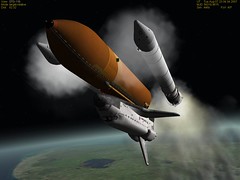
STS-118 Orbiter SRB Sep

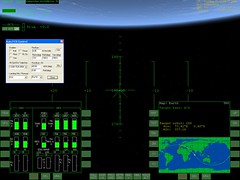
AutoFCS start screen (Orbiter)

While there is no training required to attend a shuttle launch, I figure it doesn't hurt to be prepared. Prepared for what, you might ask? Prepared to discuss and perhaps even demonstrate Orbiter to some of the other educators and NASA folks who will attend the NASA STS-118 Education Conference in Orlando next weekend (I'll be there). And what better example to show than a simulation of STS-118 itself?

Thanks to the incredibly timely work of "David413" and a few of his Orbiter add-on development helpers, I can actually do this! The latest version of the "Shuttle Fleet" add-on (v3.9.4, July 27, available at Orbit Hangar) includes not only all the current and historical shuttles and scenarios for many recent and historical missions for each of them, but the accompanying "expansion pack" includes preliminary mission scenarios for STS-118, based on Endeavour's currently planned launch on August 7 at 7:02 pm EDT. Note that you must also download and install the latest "ISS Fleet" (v1.1.2) which contains models of the ISS in various stages of construction for use with the Shuttle Fleet scenarios.

This add-on has been under development for years, with new versions often released around the time of a shuttle mission. It is amazing in so many ways. From the automated launch (using item 777 in the "OPS 1" ascent mode in the included GPCMFD, which simulates several of the programs used on the real shuttle) to docking with the ISS, from simulated payload SRMS and SSRMS operations and EVA' to automated re-entry (with the included AutoFCS autopilot), it's a virtual playground for shuttle fans. You can even practice abort scenarios. For the TAL case (Transoceanic Abort Landing after loss of a single main engine), there is even a tutorial and an accompanying flight recording to watch and learn from.

I've been reading about shuttle operations for years (I just dug out my copy of the 1982 Space Shuttle Operator's Manual, bought in 1982), but the shuttle fleet in Orbiter is more than a detailed refresher course. Simulating different phases of a shuttle mission gives you a feel for the pace and complexity of a real mission, even if you don't have to memorize hundreds of switches and procedures (it's not quite that detailed). The screen shots from Orbiter show Endeavor two minutes after launch (SRB sep), and the AutoFCS setup dialog configured for an automated reentry and landing at KSC. More pix on Flickr.

Note: The Shuttle Fleet add-on defines an alternate solar system configuration file (Sol_Alt.cfg in which the only moon defined is the Earth's Moon) and Earth configuration file (Earth_Alt.cfg, which defines surface bases used for shuttle aborts, as well as a number of predefined observation points). The supplied scenarios all use these alternate versions, in case you are wondering what happened to Jupiter's moons).

Saturday, June 09, 2007

Orbiter for Educators: Next Frontier?

Is this the launch pad for the future of space flight? A bare table with a couple of PC's, a joystick, a projector, and a bunch of wires, in front of a WWII era F4U Corsair? Actually it's just my Orbiter table at today's Space Expo 2007 at the New England Air Museum, but there a couple of dozen young people got to watch a simulated shuttle launch, experience docking with the ISS and landing the space shuttle, and learn a bit about forces and motion in the process. I also introduced Orbiter to a few educators and fellow space enthusiasts (most of whom declined a test flight).

There were some 400 attendees all together, with around sixteen exhibits, plus retired NASA astronaut Winston Scott, who was probably the biggest draw. I spoke briefly with him and invited him to check out Orbiter (I told him I had even installed an add-on F-14 in his honor, since he flew Tomcats in the Navy), and while he expressed interest, he just didn't have the time. He's an excellent speaker and a very modest and down-to-Earth guy. I would have liked to talk with him more, but there were a lot of people, so I'll just have to learn more from his book, Reflections from Earth Orbit, which I bought today.

Orbiter "test flights" were pretty popular with kids and their parents, most of whom had the usual reaction ("it's free?"). I had a single page information sheet to give to visitors to help them find Orbiter on line and get started with it. I also had two printed copies of Go Play In Space to show (one of which disappeared from the table). A few observations:

The joystick is a draw, and is pretty essential for landing the shuttle (for which I used a playback until short final when the visitor would take the stick). It's not really that great for docking, but it's more fun than the key pad. I made up large labeled diagrams for RCS control with the stick (I programmed buttons for translation and hover engine controls).

Working with one kid at a time like a coach or flight instructor worked quite well with about 10-20 minutes spent with each one. I also had the notebook running with the projector, usually an Orbiter flight recorder playback of the STS-115 shuttle launch and climb to orbit.

I need to carry a small model of the shuttle or even an aircraft to use when explaining rotation vs. translation. It was pretty silly doing this with a water bottle or piece of paper.

All in all, an interesting and enjoyable space event for the general public.

Sunday, May 20, 2007

Orbiter for Educators: Teaching is Hard!

Today I presented "Exploring Space with a Computer" at the Girls Scouts of Rhode Island SMART science/math event at Bryant University. This was the first time I had given this Orbiter-based talk in a situation with hands-on workshop possibilities, thanks to a well-equipped computer lab with 41 networked PC's. I installed Orbiter on 15 of them to support the estimated 10-15 middle-school girls per workshop (55 minute sessions, repeated four times). It was a good thing this installation was just a simple CD copy in Windows (I copied a complete home installation onto CDR for easy installation, but 3 or 4 copies instead of just two would have made the 15 installations go faster). The actual group sizes varied from 8 to 18, for a total of about 48 girls (plus adult leaders).

I kept the introductory PowerPoint and shuttle launch (playback) demo brief to allow most of the time to be hands-on with the software, and this worked pretty well. Most of the girls seemed to enjoy the activities, but I did learn some things that will help me improve such events in the future. For one thing, less is more. I had planned a solar system tour followed by a self-running planet/moon quiz using a different scenario. But it was clear that the time was better spent just exploring the first scenario, and making use of time acceleration, zooming, and panning to get a feel for the diverse appearance of the bodies of the solar system, as well as their motions. This was novel enough to hold their attention for about 15 minutes (the scenario had a lot of preset camera positions to make it easier to get around).

Another thing I should have done was make hand-outs that included step-by-step instructions for the Moon-base hover/rotate/move exercise. I had brought a few handouts (the requested copies from the organizers were lost in the shuffle of some 300 Girl Scouts and 70 presenters), and they listed a few main keyboard shortcuts and the keypad thruster controls, but not a step-by-step checklist. Duh! Many girls were too distracted by Orbiter itself to really watch my demos and listen carefully to the few essential steps I presented, and some ended up hurtling through space instead of hovering 10 meters over pad 4 at Brighton Beach Moon Base.

Two exercises (solar system tour and Moon Base Hop) were more than enough for 55 minutes, though I also had a space station docking exercise prepared! With step-by-step instructions, there might have been time for some free-form play and more questions and answers (I asked some but should have asked more, and the girls asked mostly "how do I fix this?!?"). I gave them handouts with download information to take home.

All in all a good first experiment with Orbiter in a workshop environment, but with setup from 7:45 to 10 am (plus a lot of preparation hours on Saturday afternoon and evening), and sessions from 10:30 to 3:30, I was really tired by the end of the day. I've taught many things, mostly professional training for adult engineers, plus some events for kids of various ages in optics and space. But I always forget how hard this is with kids, to stay patient and focused, and to keep it fresh. How do teachers do this day after day? Hats off to those of you who do!

Saturday, May 12, 2007

Orbiter for Educators: Name That Moon

Name That Moon in Orbiter
Next weekend I'm participating in a big educational outreach event for Girl Scouts in Rhode Island. It's called SMART (Science and Math Are Really Terrific), and I'm doing a space workshop. It's supposed to be hands-on, and it seems to be working out that I have a PC-equipped classroom so I can install multiple copies of Orbiter so the middle school girls can each have a go at playing in space (the event is at a university). Of course you never know with these things - I hope the PC's are up to the task of running Orbiter, and that I can really get the promised access to install it on them!

This means I need activities, and they have to be fun and something you can do without learning a lot about Orbiter (each workshop session is about 50 minutes). So I came up with three, a solar system tour and quiz (hoping to have some small prizes available), a "Moon hop" (hover and maneuver a Deltaglider from one pad to another at Brighton Beach on the Moon), and "final docking" with the ISS (starting from "hover" at 10 meters with slight misalignment to correct before docking). I've written brief cheat sheets for these things, and I'll also demonstrate.

For the quiz, I couldn't have them jump directly to the planets because they would then see the names directly. So I made a scenario with 13 spacecraft (Who_1 to Who_13) orbiting various bodies. You can press F3 to get the list of all the spacecraft, double click each one, and ID the planet or moon. Most are easy but there are a few tricks (like hiding a planet behind its moon at the start, requiring time acceleration to get around the moon to see the planet). I hope this is all somewhat fun and doable in 50 minutes - live testing next weekend.

Wednesday, March 28, 2007

Orbiter for Educators: Using JPL Horizons

JPL's Horizons system is a public-access database with current orbital data on many, many objects in the Solar System (both natural objects and spacecraft). Orbiter is a space flight simulator which includes a "scenario editor" that lets you interactively change the orbital data for any spacecraft in the scenario you are currently running. I was going to write an entry on how to use the web interface for Horizons to get information on (say) the Saturn-orbiting Cassini spacecraft and then transfer it to Orbiter using the Orbiter Scenario Editor. But before I could write this up, I found a better way, thanks to Tony Dunn, author of Gravity Simulator 2.0 (and also an Orbiter user).

First some general information. I won't attempt to explain Horizons itself - the FAQ and web access tutorial can do that. There are two basic types of data you can get, orbital ELEMENTS, and VECTORS (called "state vectors" in Orbiter), which we will use here. These are basically the (x,y,z) position and (Vx,Vy,Vz) velocity of the object relative to some reference body (e.g., Sun, Earth, Saturn, etc.), at a specific date and time. The date and time are encoded as a number called the "Julian Date" (JD), though Orbiter uses a modified version called (logically enough) "Modified Julian Date" (MJD). The idea is to get accurate information on an object of interest from Horizons, convert it if necessary, and enter it into Orbiter, so you can answer a question like "what does Saturn look like from Cassini right now?"

Conceptually this is quite easy (grab the date and vectors and pop them into the scenario editor), but there are a few things to learn, including the right questions to ask Horizons, and how to get the resulting data into Orbiter. Units, dates, coordinates, and reference bodies require a bit of explaining and possibly some conversions (m vs. km etc.). Nothing terrible, mind you, just a few details to keep straight.

Tony Dunn provides an easier way with his simple little utility program cfgData.exe (120 KB .exe file download) and the Horizons "batch" email interface. Download the program to any convenient directory (no installation needed) and run it. You can then enter the desired date/time and choose the object (e.g., Cassini Spacecraft, object -82 for JPL) and "center body" (e.g., Saturn barycenter, object 6 for JPL) from drop down lists of available JPL objects. Choose VECTORS, click [Create E-mail], and copy the resulting block of text to the clipboard with the button that appears. Go to your email program and create a new message. Paste the text into the body of a new email window, enter job as the subject, email to horizons@ssd.jpl.gov, and wait for the reply (usually very quick).

Select ALL the text of the reply and copy to the clipboard (check for error messages first - I just requested Cassini data for March 2009 and it's not available). Back in the cfgData window, click the [next > ] button (a new window appears), paste the return text into the new window, and click the [Create Data] button...

This is where it gets slightly tricky. The MJD and state vector data has to be copied and pasted into the right spot in an Orbiter scenario (.scn) file using a text editor like Notepad. It's easiest if you already have a scenario that is generally doing the right thing (like orbiting Saturn), so you only have to paste in the new MJD, RPOS, and RVEL data over the prior data, save it, then launch Orbiter and run your new scenario.

How do you get that starting scenario? If you've installed the Cassini add-on (shown above on 3-27-07) you will have a scenario (in the Grand Explorations folder) called Cassini Phoebe Flyby.scn which will have Cassini with STATUS Orbiting Saturn. Just copy the new date (MJD) and replace it in this file, copy the RPOS and RVEL lines in place of the old ones, Save As with a new name, and you're ready to run. Or take any Earth-orbiting scenario with a spacecraft (Deltaglider or whatever) with STATUS Orbiting Earth and change Earth to Saturn, paste MJD, RPOS, RVEL data, save, and run.

Note: You can also get orbital elements from Horizons for natural bodies such as asteroids and use this data in configuration files to add these objects to your Orbiter solar system. This has more steps, and you might consider using this utility to easily define minor planets in Orbiter.

Sunday, January 14, 2007

Orbiter for Educators: Geostationary Orbit

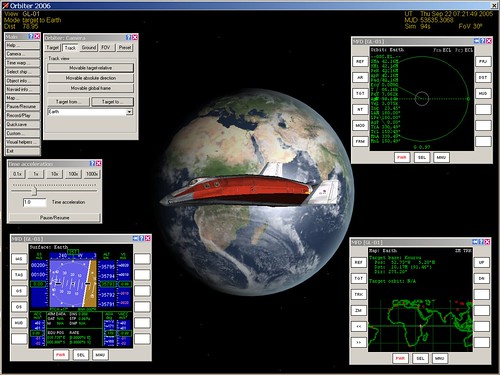
Geostationary Demo in Orbiter

Communication satellites and some weather satellites are placed in geostationary orbits, meaning that they remain above a particular point on the Earth's surface as the Earth rotates and the satellite orbits at exactly the same rate. Orbiter includes a number of sample scenarios to demonstrate various program features. One of them is called Geostationary orbit, which features the futuristic "Delta Glider" (DG) spacecraft that is used for training and other purposes in Orbiter. Here's how to use it to demonstrate the key points of such orbits. See the first post in this series if you need help downloading, installing, and starting Orbiter.

1. Start Orbiter, and in the Orbiter Launchpad, click on the Modules tab, and check to see if ExtMFD is listed under "Active modules." If not, select it in the right side list, and click "Activate selected." This module lets you display Orbiter instruments in separate windows.

2. Still in the Orbiter Launchpad, double click the Navigation folder, then the Special orbits folder, and then the scenario Geostationary orbit. When Orbiter runs, you'll be in the 2D cockpit view. Press [F1] to toggle to the external view. You will see the DG but you won't see the Earth yet.

3. Press [F4] to open the main menu, click Camera... and then click the Track button. In the list at the bottom, choose Earth, then click Target to... (this will keep both the DG and Earth in view). Press Z a couple of times to magnify the view, and zoom out a bit with the mouse wheel so you can see most of the Earth behind the DG. You should also click Time warp... to open the Time acceleration control.

4. Click the Custom... button on the menu, choose External MFD, and click OK. Drag the new "Orbit: Earth" window to one corner. Click Custom... again and make a new External MFD. On this one, press the [SEL] button at the bottom, then click the [Map] button on the left. Repeat this for a third external MFD, and this time press [SEL] followed by [Surface]. Drag the MFD's to the corners as shown.

5. Note the date and time of day in the upper right corner - it should be Thursday, 22 September 2005 at around 07:25. Speed up time to 1000x and watch the instruments and the view of the Earth change. When Earth gets dark, click the 1x (normal) time button.

Note that because the camera has been set to look at the spacecraft in the direction of Earth, both the orbiting spacecraft and the rotating Earth will appear to be fixed, while the stars and the Sun move in the background (just like our situation when we stand on the rotating Earth and the stars and Sun appear to rise and set).

Several other things to notice: on the left side of the blue and tan Surface MFD, there's a number labeled GS (ground speed, m/s). It should be close to zero. Click the [OS] button (orbital speed). It should be about 3000 meters/second, and you will notice that the green orbit position line on the Orbit MFD is sweeping around counterclockwise, but that your surface position (+ sign) on the Map MFD stays fixed over Eastern Africa.

If you speed up time to 1000x again, you can quickly reach 07:25 on Friday, 24 hours after you started. The spacecraft has traveled all the way around its orbit, but the Earth rotated at the same rate, so the DG remains "fixed" above eastern Africa all the way. How would this be useful for communication? For weather sats?

Saturday, January 13, 2007

Orbiter for Educators: View the Force, Luke!

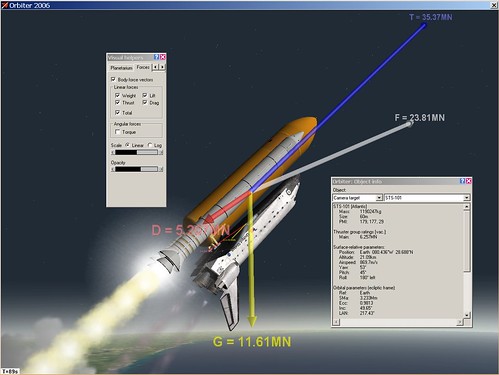
Shuttle Forces Pre-SRB Sep

Forces are fundamental in physics, and while you can feel some of them (like the force of gravity holding you in your seat), you usually can't see them. Except in Orbiter, which can display colorful vectors to show the forces that are acting on any spacecraft, updated in real time. It's pretty cool. Here's a quick way to demo this, using the flight recording of a launch of the space shuttle Atlantis. I assume you've installed Orbiter and know how to find and launch a scenario (if not, refer to the first post in this series or see Go Play In Space).

1. Start Orbiter, open the folder Playback, and double click the scenario Atlantis Launch.

2. Press [F4] to open the menu, then click Visual Helpers...

3. Click the Forces tab and check the box labeled Body force vectors. Also check the Total box so you can see the "resultant vector" (net result of all forces). Adjust the Scale and Opacity sliders as desired.

4. Press Control-I (info) to display information about the selected object (by default, the shuttle), including its mass and altitude.

As Atlantis launches and climbs to orbit, you'll see a big blue vector representing the thrust (T) , a yellow G vector (represents force of gravity, i.e., weight), a smaller red vector for drag (D), and a white "total force" vector (F). You may also see a smaller set of vectors representing the forces on the payload inside the shuttle's payload bay.

The force vectors are labeled with values in MN (mega-Newtons - 1 MN is about 225,000 pounds of force). Watch as these vectors change size and value as fuel is burned (reducing mass), the atmosphere gets thinner, and the shuttle changes orientation. Notice that thrust is greater than the sum of weight and drag, as it must be if the shuttle is to climb and accelerate. Note that drag increases for a while (due to increasing speed) and then falls off (due to thinner air at higher altitude). When the solid rocket boosters (SRB's) separate at about 2 minutes into the flight, they will have their own force vectors, and the thrust and weight values of the shuttle itself will decrease (no more SRB thrust, and mass is also reduced).

When the shuttle reaches about 153 km altitude, main engines will shut down and the external tank will separate (though the shuttle would really roll upright before separation from the ET). At this point, both the shuttle and the ET will be in orbit, and the only force visible will be "G" or weight. Is this correct? Isn't the shuttle "weightless" at this point? Not really. In orbit, the shuttle will be in free fall, pulled toward the center of the Earth by gravity but constantly "falling around" the curved Earth. With nothing to resist its motion and "push back" (like the chair that you feel pushing against you when you sit), the shuttle and its occupants will continue to fall freely and will not feel their weight. While it's often called "zero G," gravity is not zero when you are in orbit.

Thursday, January 11, 2007

Orbiter for Educators: Solar System Tour

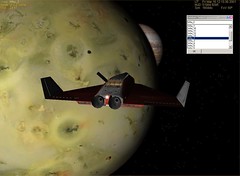
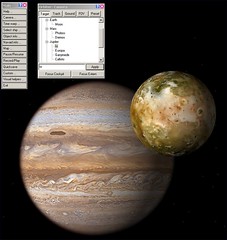
Orbiter Simulator - Jupiter with Io

Continuing with the quick stuff you can do with Orbiter, here's how to take a quick tour of the Solar System. Although Orbiter scenarios generally include spacecraft and involve operating them (you can even switch between multiple spacecraft), you also have direct access to Orbiter's camera without bothering to fly anything. Regardless of what any spacecraft may be doing, you can use the Camera dialog box to move the camera to any planet or moon or to any surface base, spacecraft, or space station that is defined in the current scenario. Once there, you can control the field of view and zoom level of the camera, and move it around with the mouse.

Orbiter also gives you control over time - the Time Warp dialog can speed up or slow down time at will, from 0.1x (10% of real time, slow motion) to 100,000x. You can also selectively turn on various text labels so you can tell what planets, moons, stars, and surface features you are looking at. This is controlled by the Visual Helpers dialog. Here's a quick tour of the Solar System:

1. Start Orbiter and Launch a Scenario - See the January 10 post if you need advice on installing and starting Orbiter (remember to go to the Video tab to set your screen resolution before running a scenario). Although you can tour the Solar System in any scenario, the best one to use is Grand Tour which is found in the folder labeled The Solar System. This scenario has good pre-defined viewpoints for most of the planets and moons of the Solar System.

2. Open the Main Menu - Once you see the 3D view of Earth, press [F4] to display the main menu, then click Camera... to display the Camera dialog. You should also open up the Time Warp dialog so you can easily speed up time to see the rotations of the planets and moons. The Visual Helpers dialog lets you turn various labels on and off (helpful with Jupiter's moons when you are zoomed out and speeded up to see them zipping around the Jovial Giant). You can open these dialogs as needed or leave them open on the screen as Orbiter runs.

3. Tour the Planets - Play with Target and other buttons in the Camera dialog to see what they do, then click the Preset button. Double click any item in the list of presets to go to it. Try clicking the 1000x button on the Time Acceleration (Warp) panel to make the motions more apparent (you can also use the T key to speed up and R to slow down). Use the Visual Helpers dialog to turn on Planetarium mode and select various labels and grids.

That's it! You can zip around the whole Solar System in about 10 minutes, but be sure to take time to smell the roses (on Earth anyway). Use the mouse (right button) and mouse wheel to change the view and zoom. For more details and ideas for touring, see the second half of chapter 2 in Go Play In Space.

Wednesday, January 10, 2007

Orbiter for Educators: (Almost) No Prep

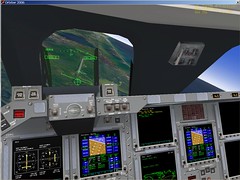
Orbiter 2006 P1 Atlantis VC #1

Orbiter is a freeware space flight simulator for the PC that I have written about extensively in this blog and elsewhere. Aside from being a fun way to "Go Play In Space" (the title of a free tutorial ebook I wrote about Orbiter) for people with an interest in space flight, Orbiter also can also be a useful tool for teaching about the solar system, space flight, atmospheric flight, physics, and other subjects. If you're a teacher, you might say, "Great, but when would I have time to learn this thing?" I don't know the answer to that, but the good news is that there are some cool things you can do with very little preparation beyond downloading and installing the software (~20 minutes on a good connection) and following a few instructions. These include giving a cool 3D tour of the Solar System and showing pre-recorded "flight recording" playbacks of the simulated launch and landing of the space shuttle (not just a video - you can control the "camera" and view it from inside or outside the cockpit).

This is not quite "no prep," but it's pretty easy. In later installments I will describe things you can do if you can take a little time to learn more about Orbiter. Here are the basics to get you started, which are described in more detail in Go Play In Space (this is a free 9 MB PDF download).

1. Download and install Orbiter - Go to and print the Download page of www.orbitersim.com, where you will find download and installation instructions and a list of "mirror sites" where you can get the actual files. Download the full Base package (63 MB) for Orbiter, and if possible, also download the high-resolution (L10) Earth textures (79 MB) and hi-res "Planets & Moons" (72 MB). These are not strictly necessary but they make the planets look even better (see chapter 1 of Go Play for more details).

2. Download and install Orbiter Sound - This is a separate but nearly essential "add-on" package that is easy to install and adds all sorts of sounds and even music to the otherwise silent Orbiter (sound is easily configurable). Go to Dansteph's download page, download, and run the file Orbiter Sound 3.0 (10.4 MB) to install it (see chapter 1 of Go Play for more details).

3. Start Orbiter and Choose a Playback Scenario - Double clicking the Orbiter icon displays the Launch Pad, where you can pick and run a scenario from one of many folders (go to the Video tab first to set your screen resolution). Double click the Tutorials folder and then the Atlantis Final Approach playback scenario (a very quick playback with on-screen text explanations). Once the playback starts, it will switch to different views automatically. When it first goes to an internal view, press [F8] to switch to the 3D "virtual cockpit" which looks more like the real shuttle cockpit. You can manually toggle between internal and external views with [F1].

4. Learn the Basic Operations - The main view things are that holding the right button and moving the mouse lets you move the camera around, while the mouse wheel (or PgUp/PgDn) controls camera zoom. The [F4] key displays the main menu. Choose Exit from the menu to quit (or use Control-Q).

5. Watch Atlantis Land - Orbiter is interactive - you can do everything yourself and even take over a playback at any time to fly it yourself - but playbacks are nice for talks because you only have to worry about the views. Another quick tutorial playback is Smack! Rescue (described in chapter 2 of Go Play), and Atlantis Launch, found in the Playback folder.

I'll do a "some prep" article soon to talk about touring the Solar System and taking control of an orbiting spacecraft. Later articles will talk about using add-ons to simulate historic space missions , making forces visible, and other subjects.